
Automate patch creation, change tracking and update delivery to your server — no more building every release by hand.
When you ship updates regularly, one of the most tedious jobs is preparing the files for distribution: you have to figure out what changed, create the archives, update the version information and upload the result to the server.
UpNova Update Builder automates this process. Besides the familiar graphical interface, the tool supports a console mode (CLI), so you can build and publish an update with a single command.
This is especially handy for game projects, automated builds, CI pipelines and teams that release new versions regularly.
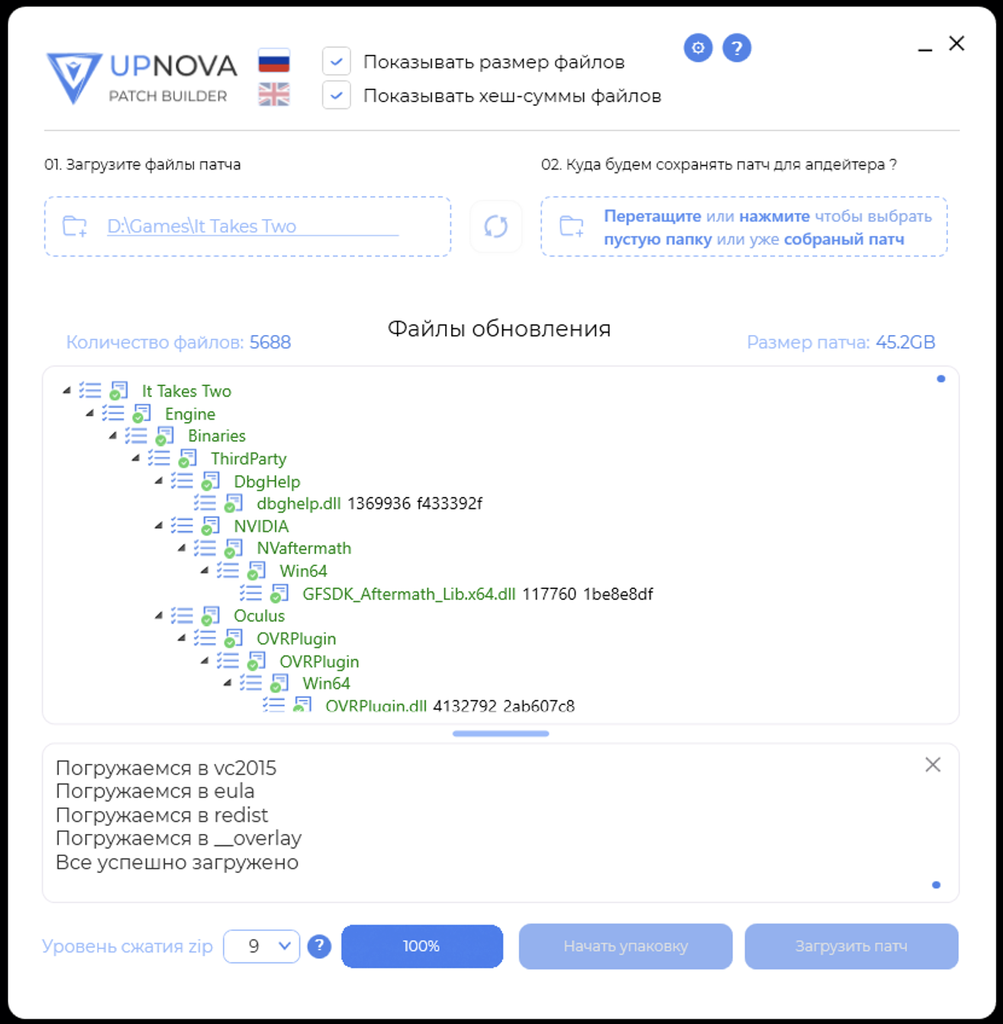
1. What the UpdateBuilder console mode can do
The CLI runs the full update preparation cycle: from analyzing the source files to uploading the finished patch to the server.
Key features:
- Incremental builds. The program detects new, changed and deleted files, so the whole project is not packed again.
- Automatic versioning. Each build creates
UpdateInfo.xmlwith information about the next patch version. - Configurable ZIP compression. Pick the right balance between build speed and archive size.
- Automatic publishing. Upload to S3-compatible storage and SFTP is supported.
- Flexible update control. You decide which files take part in the quick update and which ones need a hash check.
- Built for automation. The CLI can be run from
.batfiles, PowerShell, Windows Task Scheduler and CI. - Logging. Results are saved to log files, and exit codes let you detect errors automatically.
Console mode does not need a separate set of utilities: it uses the same UpdateBuilder.exe as the graphical interface.
2. Initial setup
UpdateBuilder runs on Windows and ships as a single executable — UpdateBuilder.exe. No extra DLLs are needed next to it.
To build patches locally, all you need is a folder with the source files and a separate directory for the results.
If you plan to publish automatically, set up the storage connection once.
Setting up the storage
- Run
UpdateBuilder.exein the normal graphical mode. - Open the settings by clicking the gear icon at the top of the window.
- Choose the storage type: S3-compatible or SFTP.
- Fill in the connection parameters.
- Save the settings.
For S3-compatible storage you specify the endpoint, bucket, region, Access Key ID and, if needed, a prefix for the remote folder.
AWS S3, Cloudflare R2 and MinIO are all supported. For Cloudflare R2, use auto as the region.
The settings are saved to UpdateBuilder.config.xml next to the program and are used automatically when the CLI runs.
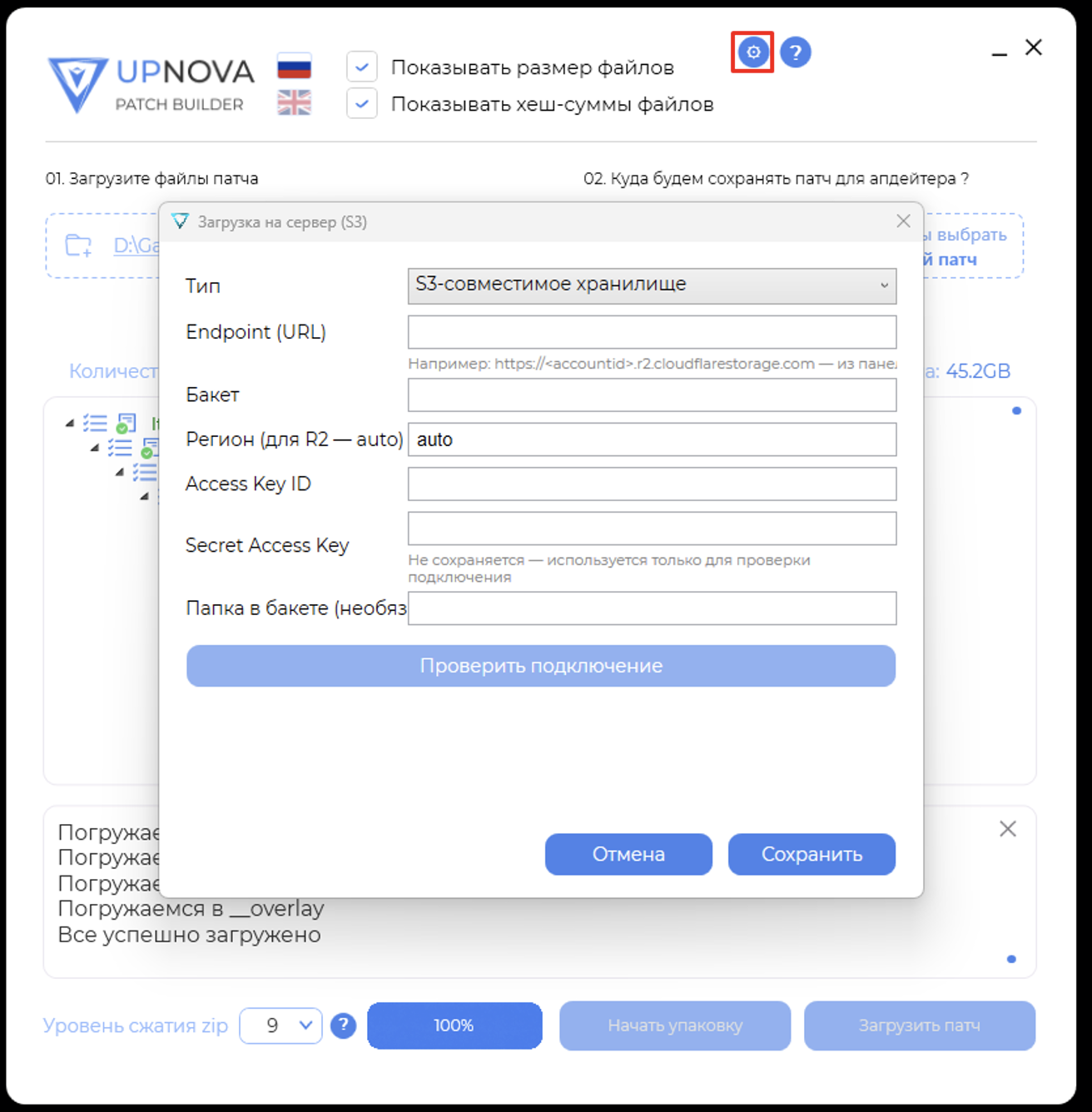
Important: the Secret Key or SFTP password is not written to the configuration file. You pass the secret separately when publishing.
3. Your first patch build via the CLI
Console mode has two required parameters:
--patch— the folder with the update source files;--out— the folder where the build result will be created.
Example command:
UpdateBuilder.exe --console --patch D:patch --out D:outOnce started, UpdateBuilder performs several operations automatically.
Step 1. File analysis. The program scans the contents of D:patch and calculates CRC32 checksums.
Step 2. Change detection. If the output directory already contains UpdateInfo.xml from a previous build, UpdateBuilder identifies new, changed and deleted files.
Step 3. Archiving. New and changed files are packed — each into its own ZIP archive.
Step 4. Version update. UpdateInfo.xml is created with information about the next patch version.
As a result, D:out contains the prepared archives and the update metadata.
4. Controlling the compression level
When preparing updates, sometimes build speed matters more, and sometimes the smallest download size does.
UpdateBuilder lets you set the ZIP compression level with the --level parameter.
Example:
UpdateBuilder.exe --console --patch D:patch --out D:out --level 6| Level | Characteristics | Recommended use |
|---|---|---|
1–3 | Fast compression | Frequent test builds |
6 | Balance of speed and size | Regular updates |
9 | Maximum compression, slower | Smallest size is the priority |
The recommended value is 6. It gives a practical balance between patch build speed and archive size.
If --level is not specified, UpdateBuilder uses the value from UpdateBuilder.config.xml. By default it is level 9.
5. Automatic update upload
Once the patch is built, it can be published automatically to the storage you configured in the interface.
Just add the --upload parameter:
UpdateBuilder.exe --console --patch D:patch --out D:out --uploadAfter the build, UpdateBuilder compares the local output folder with the remote storage.
During synchronization the program:
- Uploads new files.
- Updates changed files.
- Deletes obsolete files on the server.
- Uploads
UpdateInfo.xmllast.
The order matters: the file with the new version metadata is sent after all the other update files.
This way, building and uploading become a single operation.
Please note: automatic patch upload to remote storage is currently experimental.
If you use it, we recommend that you:
- Test the upload on a separate test storage first.
- Check that the uploaded files and update metadata are correct.
- Keep a backup of the previous patch version before publishing.
Passing access keys securely
Publishing requires a Secret Key or SFTP password. UpdateBuilder never saves it to the configuration file or anywhere else on disk.
There are two ways to pass it.
Option 1. Environment variable
Windows Command Prompt:
set UPDATEBUILDER_SECRET_KEY=your-password
UpdateBuilder.exe --console --patch D:patch --out D:out --upload
PowerShell:
$env:UPDATEBUILDER_SECRET_KEY = "your-password"
.UpdateBuilder.exe --console --patch D:patch --out D:out --upload
This option suits automated scenarios. In CI, take the secret from a protected variable store instead of writing it into the script.
Option 2. Interactive input
If the environment variable is not set, UpdateBuilder asks you to enter the secret before publishing. Some console messages in the current version are in Russian — this prompt reads “Enter Secret Key / password (not saved)”:
Введите Secret Key / пароль (не сохраняется): ********The value is only kept in the process memory. If you leave it empty, publishing is cancelled.
6. Fine-tuning update files
To control how updates behave, UpdateBuilder supports two additional parameters:
--quicklist— a list of files and folders for the quick update;--checkhashlist— a list of files and folders that get a hash check after updating.
Both parameters take a path to a plain text file.
Example list
Let’s create quicklist.txt:
# Main application files
bin/game.exe
bin/system
configs

# Additional files
MyPatch/readme.txt
Both individual files and whole folders are supported. If you list a folder, the rule applies to all of its contents, including subfolders.
Also:
- Lines starting with
#are comments. - Empty lines are ignored.
- Both
/andseparators are allowed. - Paths are case-insensitive.
- Invalid or missing paths are written to the log.
Important: when you use a list, the corresponding flag is turned on only for the listed files. For all other files it is turned off.
Example run:
UpdateBuilder.exe --console --patch D:patch --out D:out --quicklist D:listsquicklist.txt --checkhashlist D:listscheckhashlist.txtIf a parameter is not specified, the flags from the previous patch are kept, and for new files they are turned on.
7. Using UpdateBuilder in automation
One of the main advantages of the CLI is that patch building fits into your existing release process.
For example, once the files are ready, you can run UpdateBuilder automatically from a BAT script or CI.
Example BAT script
@echo off

UpdateBuilder.exe --console --patch D:patch --out D:out --level 6 --upload

if errorlevel 1 (
    echo Build or publishing failed
    exit /b 1
)

echo Update prepared successfully
You can run such a script manually or use it as a step in an automated pipeline.
UpdateBuilder returns standard exit codes:
| Code | Meaning |
|---|---|
0 | The operation completed successfully |
1 | An error occurred during building or publishing |
This lets CI tell whether publishing succeeded and stop the pipeline if something goes wrong.
Tracking progress
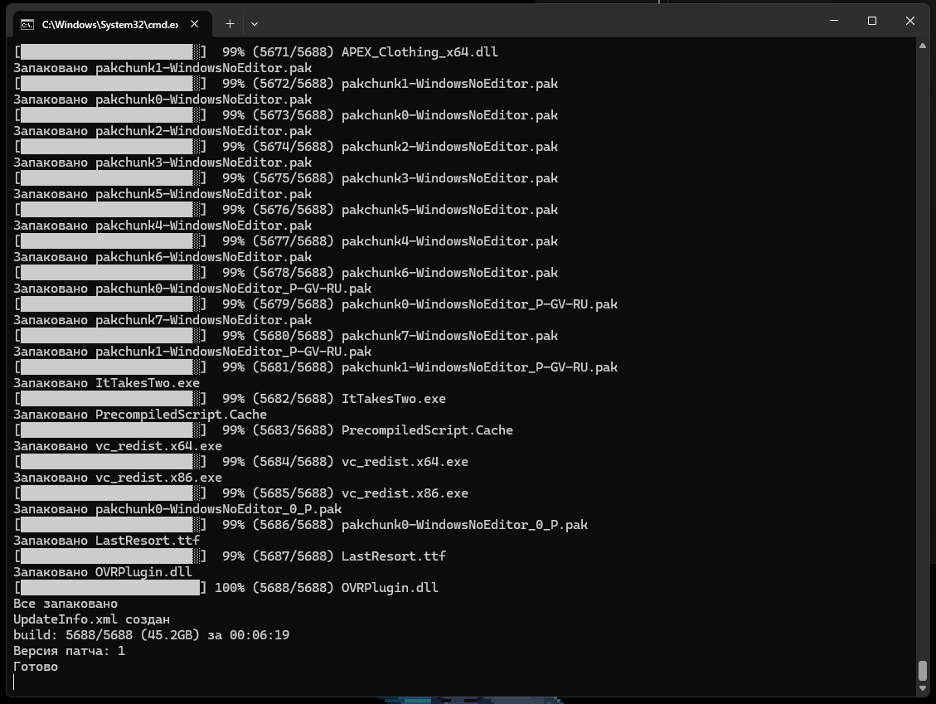
During a build, UpdateBuilder shows the current stage, the completion percentage, the number of processed files and other details.
For example (“за” means “in”, “Версия патча” — “Patch version”):
== build ==
[████████████████████░░░░]  80% (4/5) data/f4.txt
[████████████████████████] 100% (5/5) data/f5.txt
build: 5/5 (2.1KB) за 00:00:00
Версия патча: 5
Full operation logs are saved to the Logs folder next to the executable — a separate log for each run.
8. Command-line parameters
For convenience, all CLI options are collected in one table.
General syntax:
UpdateBuilder.exe --console --patch <folder> --out <folder> [--upload] [--quicklist <file>] [--checkhashlist <file>] [--level <1-9>]| Parameter | Purpose |
|---|---|
--console | Run in console mode |
--patch | Path to the update source files |
--out | Folder for the finished archives and metadata |
--upload | Publish automatically after the build |
--quicklist | List of files for the quick update |
--checkhashlist | List of files with a hash check |
--level | ZIP compression level from 1 to 9 |
--help, -h | Show help |
To see the available parameters, run:
UpdateBuilder.exe --help9. Common errors and how to fix them
In automation, it is just as important to quickly find out why a run failed as it is to run builds successfully.
Below are the most common UpdateBuilder messages. Messages in Russian are shown as the program prints them, with a translation.
| Message | What to check |
|---|---|
Required arguments | Are --patch and --out specified? |
Patch folder not found | Does the source folder exist? |
Patch folder and output folder must not match or be nested | Are the folders the same, or is one inside the other? |
Выгрузка не настроена (upload is not configured) | Are the storage parameters filled in? |
Секрет не задан (secret is not set) | Was the password or Secret Key passed? |
Не найдено в патче (not found in the patch) | Are the paths in the text lists correct? |
Сборка завершена с ошибками: N (build finished with N errors) | Which files could not be packed? |
For detailed diagnostics, check the corresponding file in the Logs folder.
10. A complete automated build example
Let’s take a scenario where you need to prepare a game client update, use the standard compression level, apply the flag lists and publish the result.
Everything is done with a single command:
UpdateBuilder.exe --console ^
  --patch D:GameRelease ^
  --out D:GameUpdates ^
  --level 6 ^
  --quicklist D:GameListsquicklist.txt ^
  --checkhashlist D:GameListscheckhashlist.txt ^
  --upload
With the storage connection configured and the secret passed, UpdateBuilder will:
- Check the current game client files.
- Detect changes since the previous build.
- Pack new and changed files.
- Apply the update rules you set.
- Generate the next version’s metadata.
- Sync the result with the remote storage.
- Save information about the completed operations to the log.
This approach lets you make patch creation part of an automated release process without running each step by hand.
UpdateBuilder optimizations and improvements
Besides the new console mode, UpdateBuilder received a number of optimizations and improvements that make it more convenient and make update preparation more efficient.
Key changes:
- Better patch building. Incremental processing works only with new and changed files and avoids re-packing unchanged content.
- Flexible compression. You can now choose the ZIP compression level to fit the task — from quick test builds to release builds.
- Optimized publishing. When syncing with remote storage, only new and changed files are transferred, not the whole data set.
- Better diagnostics. Detailed logs, progress display and exit codes make it easier to follow operations and find errors.
- Easier automation. Building and publishing can now be combined into one process by integrating UpdateBuilder into your existing scripts and CI pipelines.
As a result, UpdateBuilder has become a more flexible tool for regular releases, and preparing and publishing patches takes fewer manual steps.
Conclusion
Console mode extends what UpNova UpdateBuilder can do: you can use it not only to prepare patches by hand, but also as part of an automated release infrastructure.
Instead of running operations one by one, you get a single process: analyzing changed files, creating archives, managing patch parameters and publishing the result.
The key benefit is running a full build and update delivery with one command, while keeping flexible settings and full control over the process.
This cuts down on repetitive manual work and makes regular releases simpler.
UpNova UpdateBuilder is part of the UpNova ecosystem.